The complete mobile-first guide to using ARIA effectively
This version of the guide starts with the iPhone experience first, then calls out what changes on Android and web. It explains how to sign in, orient yourself, work Board, Agenda, Inbox, Calls, Chat, Contacts, notifications, and the in-app guide without guessing.
Best for
New users, reviewers, internal team members, and anyone learning the mobile workflow for the first time.
Core idea
ARIA prepares the work. You review, adjust if needed, and approve what should happen next.
Screenshot note
This page now uses live iPhone screenshots throughout, including real settings, draft-detail, call-detail, phone, and billing captures. Newer settings are described in text even when one expanded control is not visible in a screenshot.
Overview
What ARIA actually does
ARIA is a review-first assistant. It reads your connected context, prepares drafts and summaries, and gives you one place to review what should happen next before anything moves forward.
01
Connect
Link the inboxes, calendar access, and account settings ARIA needs to understand your workflow.
02
Review
Let ARIA organize drafts, call summaries, schedule actions, and relationship context into clear next-step sections.
03
Approve
Confirm what should happen, make small edits where needed, and keep human judgment in control.
Getting Started
Before you begin on mobile
You do not need to connect every service on day one. You do need a clean starting point, the right account, and enough context for ARIA to become useful quickly.
- An ARIA account. On mobile, the fastest start is usually your existing work login if Google, Microsoft, or Apple is already tied to the account.
- At least one connected email account if you want ARIA to draft replies, organize follow-ups, and show approvals in Inbox.
- A connected calendar if you want scheduling help, daily briefs, and date-based tasks to show up in Agenda.
- Notification permission if you want briefs, reminders, and unread updates to reach you without opening the app first.
- A paid plan if your team relies on calling, a dedicated assistant number, call overage, or higher-volume assistant workflows.
- Working hours and a reachable transfer phone number if you want ARIA to handle live availability or interrupt you for important callers.
First Run Setup
What to do the first time you open ARIA on your phone
The best first-time setup is short and deliberate. You are not trying to configure everything. You are trying to make ARIA immediately useful.
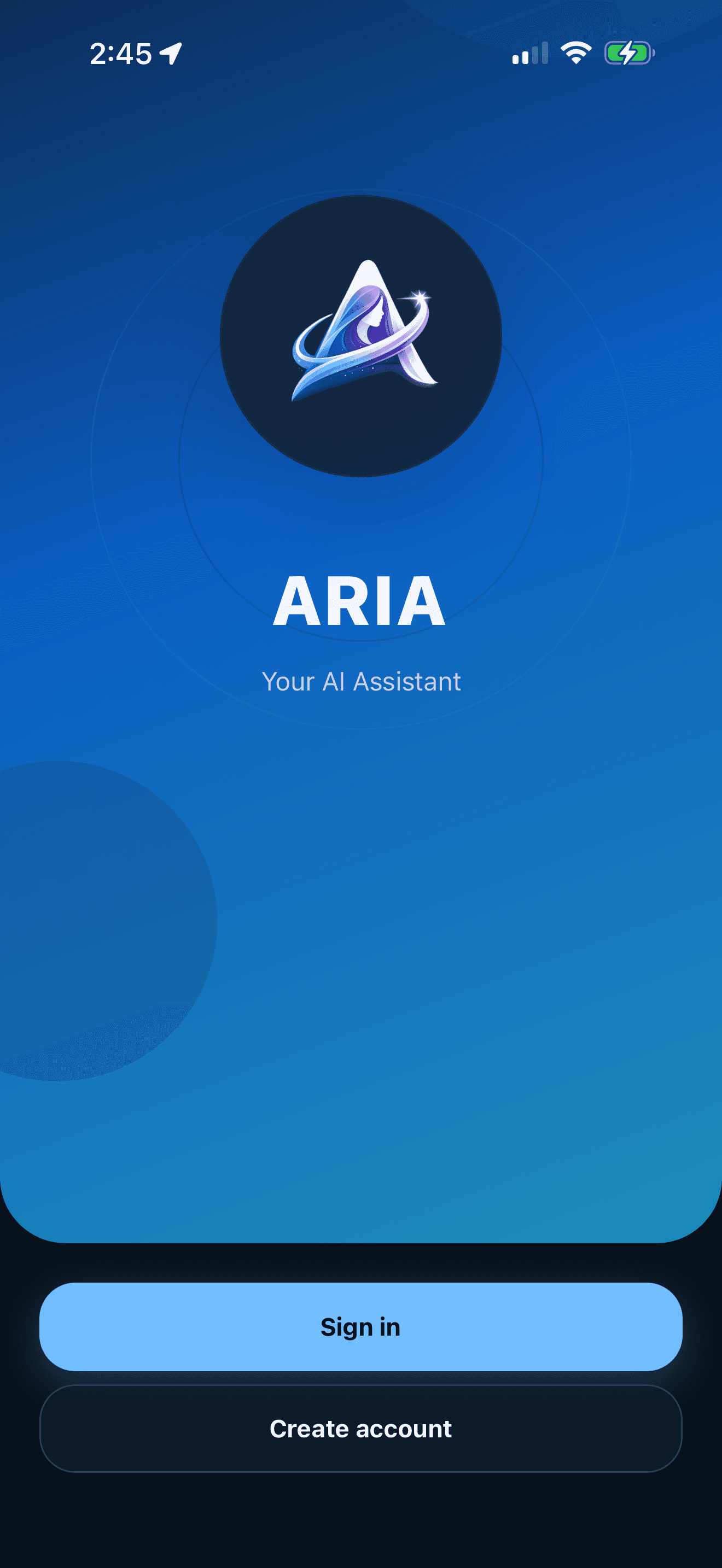
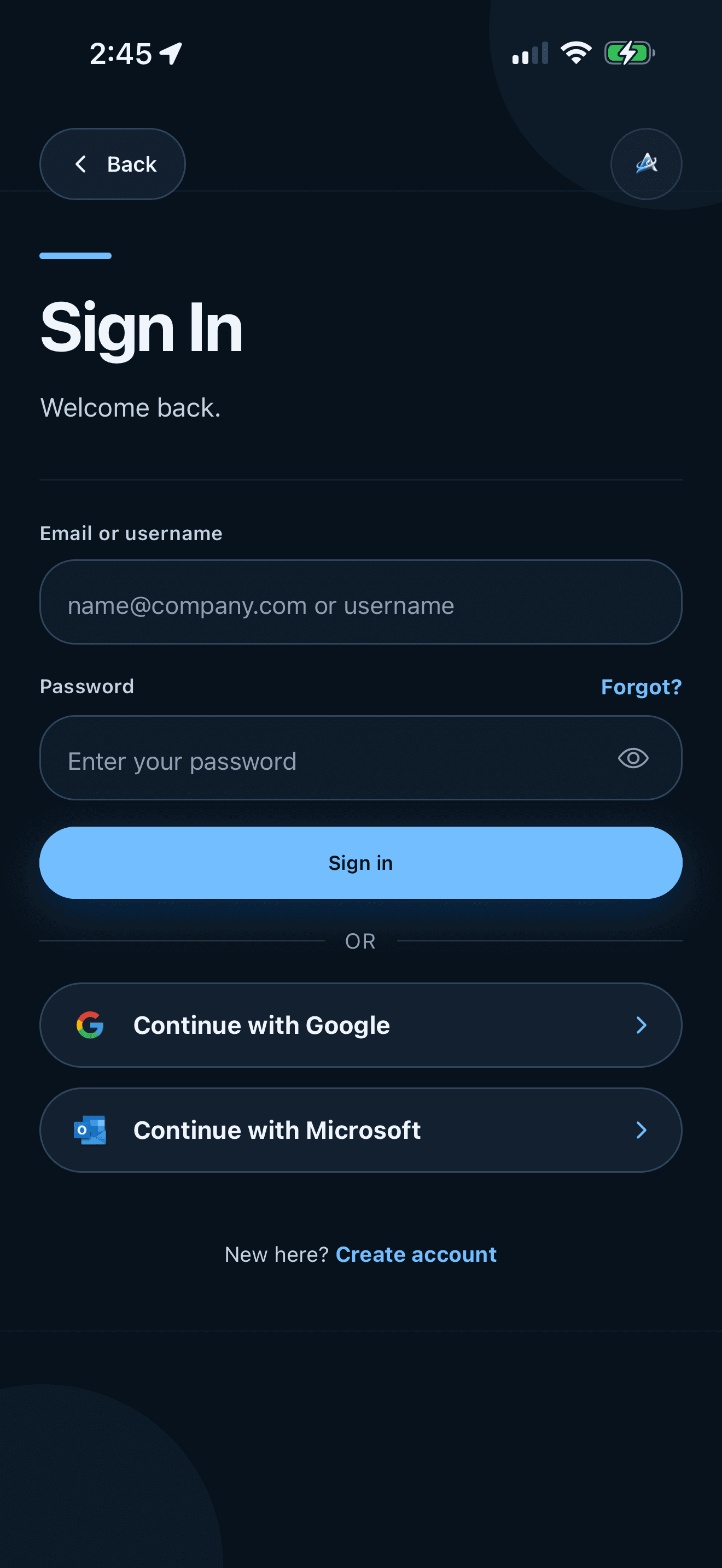
Sign in and confirm you are in the right account
Start with the same account you expect to use across phone and web. That keeps briefs, drafts, calls, contacts, and billing in one place. If something feels missing later, the wrong account is one of the first things to verify.
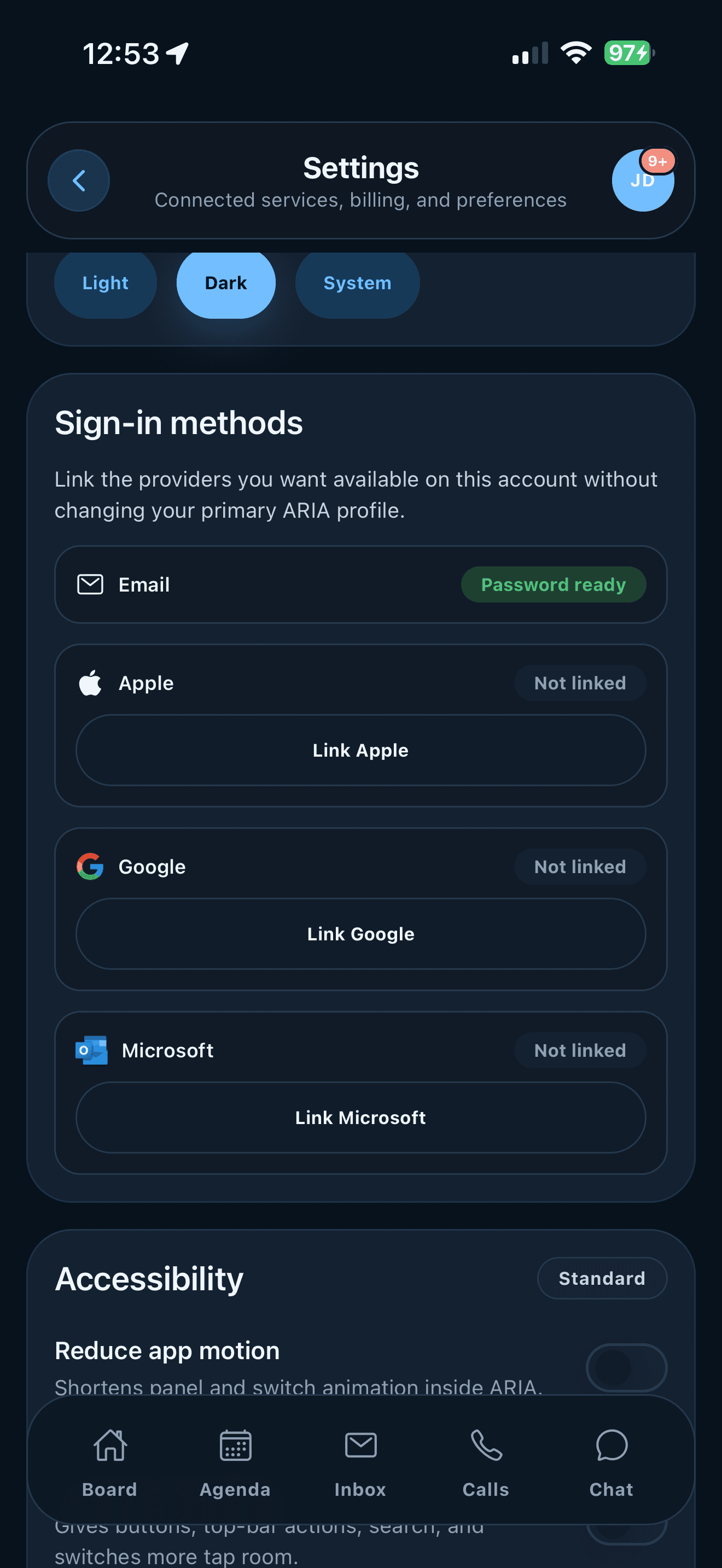
Learn the five main mobile tabs
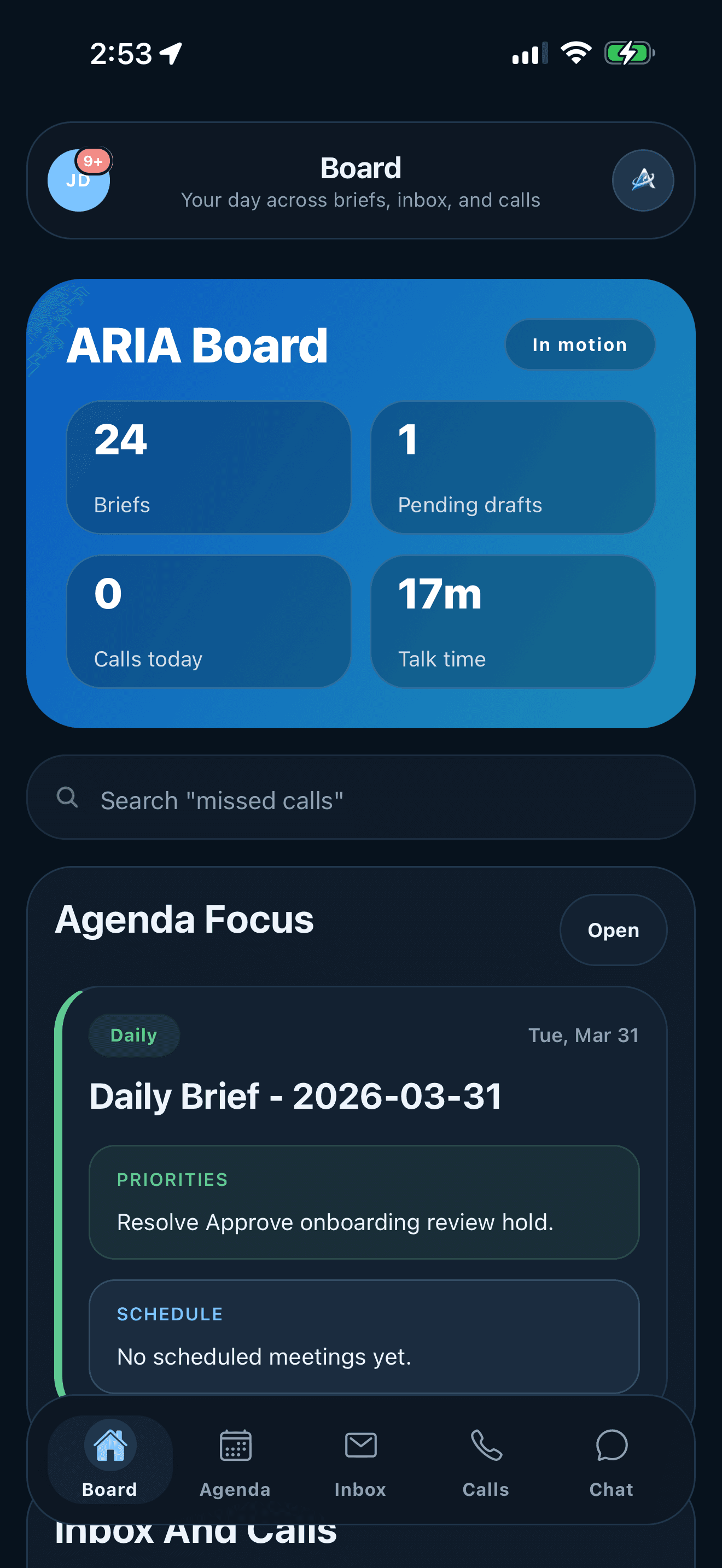
ARIA is easiest to understand when you know what each tab does. Board gives the overview, Agenda handles calendar work, Inbox holds drafts and approvals, Calls holds call follow-up, and Chat is where you ask ARIA for help directly.
Connect only the services that matter first
Do not try to connect everything at once. Begin with the inbox and calendar that create the most real work for you. That gives ARIA enough signal to be useful immediately without creating a confusing first-day setup.
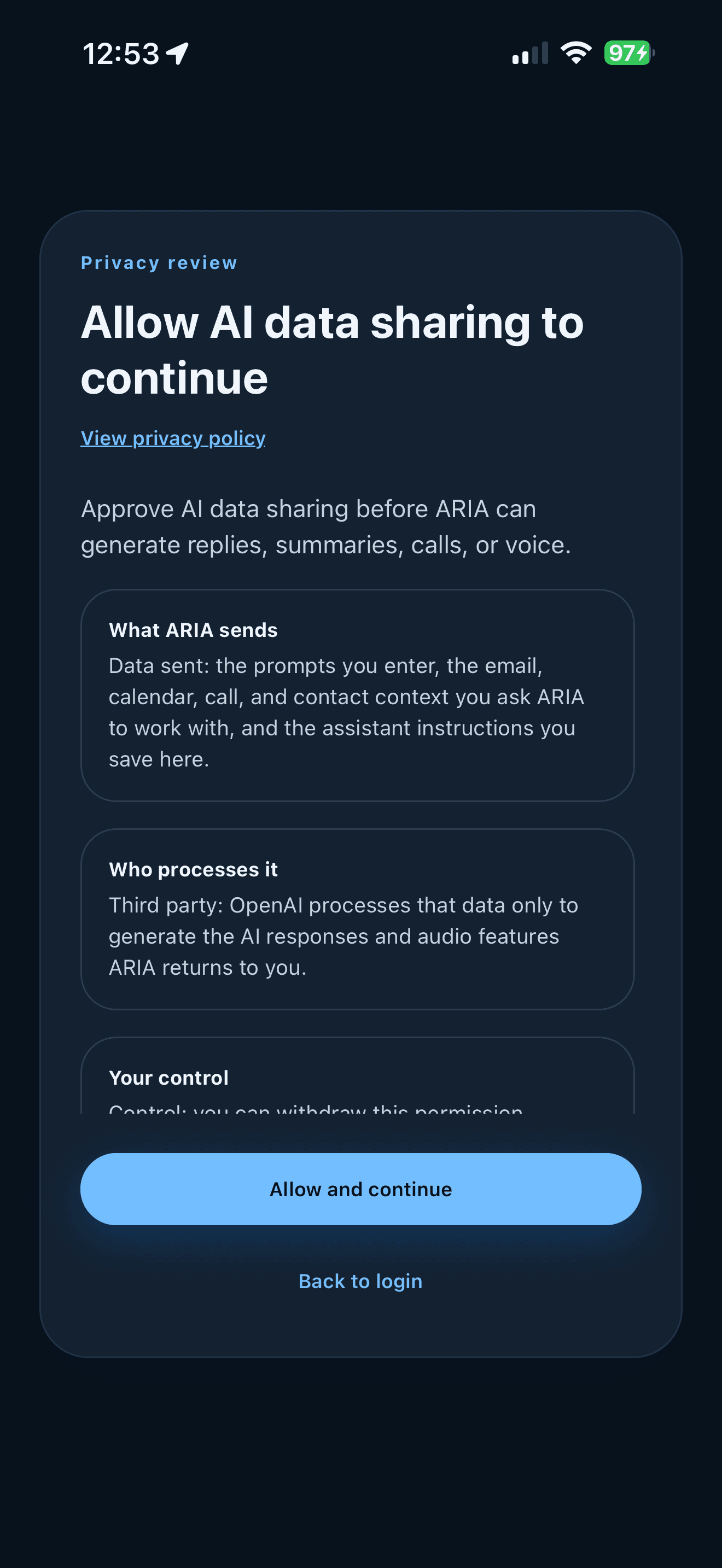
Allow AI features if you want drafts, summaries, and calls
On first run, ARIA may ask for permission to use AI features. Turn this on if you want drafted replies, summaries, call handling, and voice features. If you skip it, the app will still open but many assistant features will stay limited.
Turn on notifications and check plan access early
Mobile becomes much more useful when ARIA can surface briefs, unread work, and urgent caller activity in real time. If your team uses calling, also confirm plan access, working hours, and phone setup before you depend on it during a busy day.
Daily Rhythm
How to move through ARIA each day on mobile
Most people get the best results when they use ARIA as a short daily check-in instead of a place to live all day. Start broad on Board, then move into the tab that matters.
Step 1
Start on Board
Board is the quickest way to understand what changed since the last time you checked in. It gives you counts, the newest brief, and a fast sense of where attention belongs right now. On web, Home plays the same role.
Step 2
Open Agenda when time matters
After Board, move into Agenda if you need to review the daily brief, pending scheduling actions, or date-based approvals. This is the tab that helps you translate assistant output into an actual day plan.
Step 3
Clear Inbox and Calls one section at a time
Handle one section at a time. Review draft-related work in Inbox, then move to Calls for summaries and follow-up context. This is faster than bouncing around the app because you stay in one decision mode at a time.
Step 4
Use Chat when the next step is not obvious
Chat is for quick help and judgment calls. Ask what needs focus, request a draft, summarize a thread, or turn several pieces of information into one next step. This is where ARIA feels most like an assistant instead of a queue.
Inbox Workflow
How to review and send AI-prepared drafts
Inbox is where ARIA saves the most time. The goal is not to write every message from scratch. The goal is to review, adjust, and approve faster with the right context already assembled.
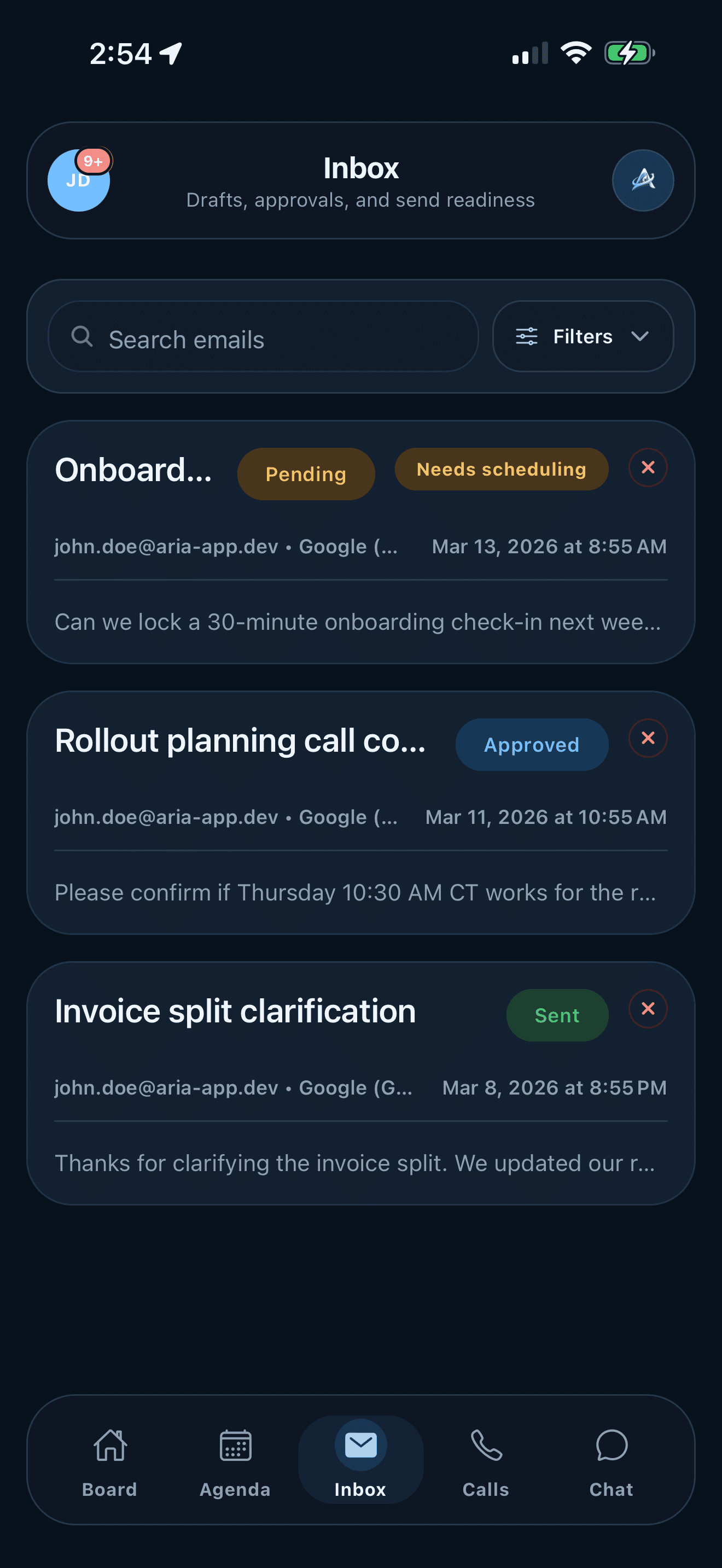
- Open Inbox when you want to review AI-prepared drafts, pending approvals, or messages that are close to send-ready.
- Remember that ARIA focuses on messages with the ARIA label plus approved watch rules. If a sender or domain should be included, add it from Connections before assuming Inbox is broken.
- Use search and filters before you start editing. Narrowing the queue first makes every later decision easier.
- Open the item, scan the source context, then decide whether this is a quick approval or a message that needs a human rewrite.
- Treat ARIA's draft as a strong starting point, not a final command. Keep your judgment for tone, risk, money, and relationships.
- Send or approve only after the draft clearly matches your intent. The win is faster review, not blind automation.
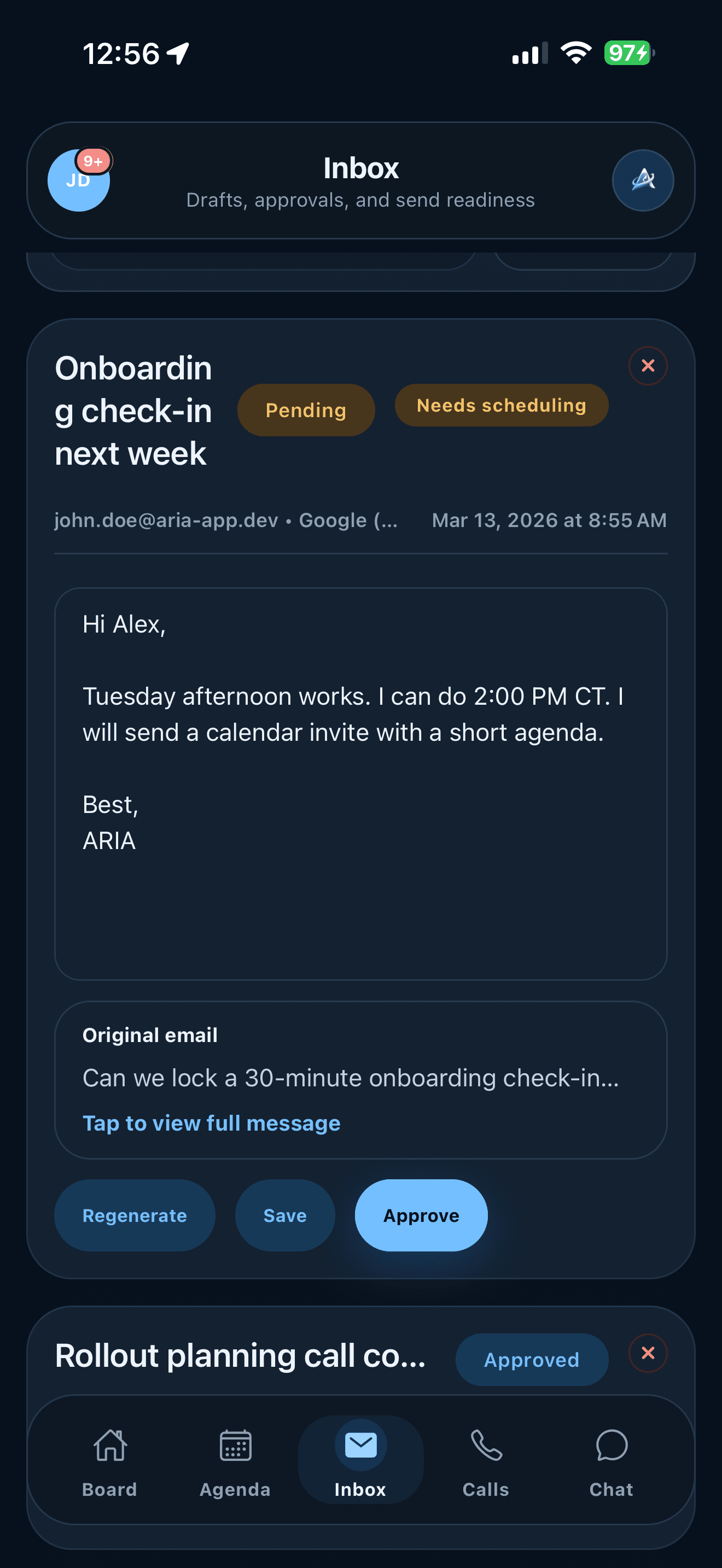
Real iPhone detail view
Open the draft, compare it with the source, then decide
After you tap a pending item, ARIA should show the suggested reply, the original email, and clear actions such as regenerate, save, or approve. This is the screen where you slow down slightly and make sure the tone, promise, and timing actually match what you want sent.
Use the source message to sanity-check names, dates, and commitments.
Approve when the draft is already right. Save when you want to come back later. Regenerate when the direction is right but the wording is off.
On web, the same decision happens in a wider layout. On iPhone and Android, it is more linear and easier to review one item at a time.
Call Workflow
How to use call summaries, context, and follow-up actions
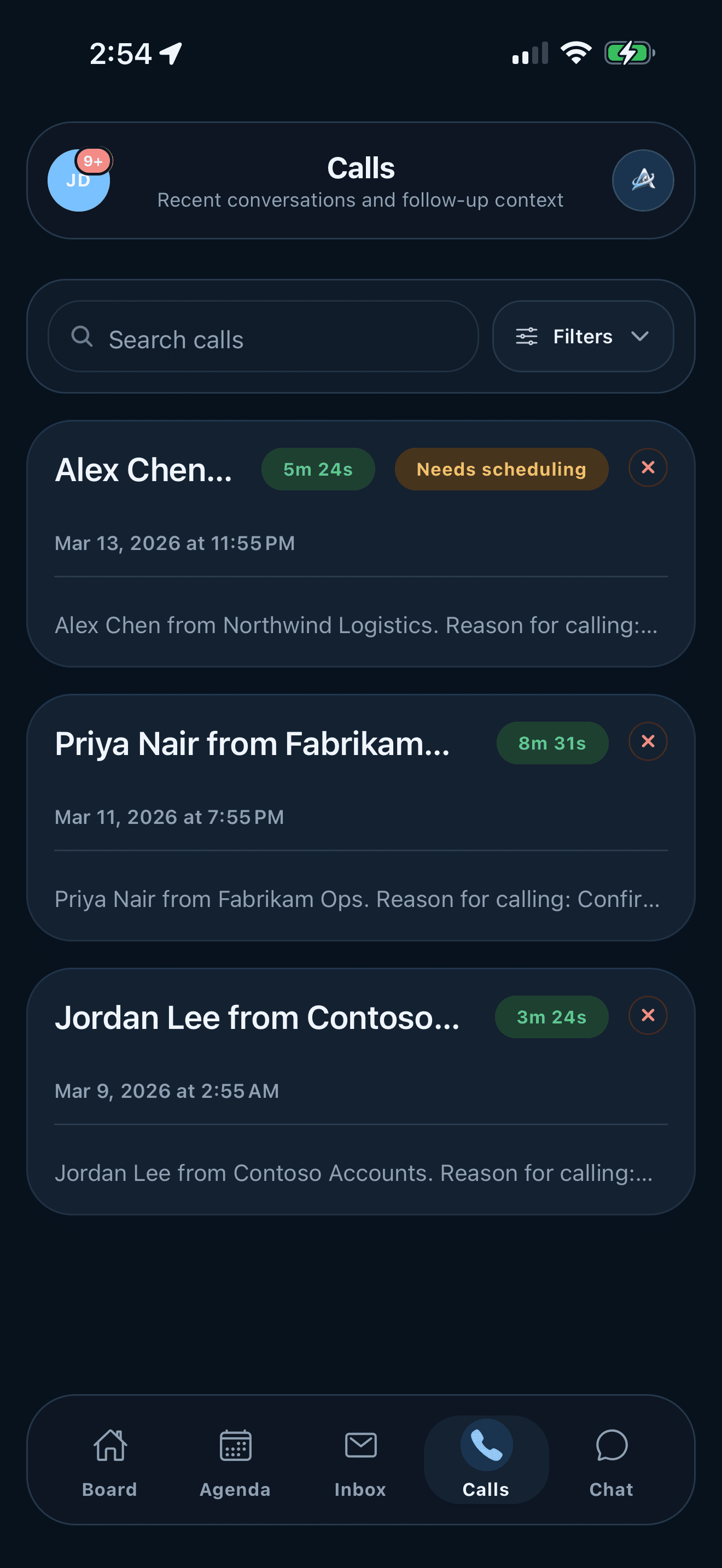
ARIA calls are most useful when you treat them as a review step after the conversation. The AI handles the call, then you check the result and decide what happens next.
- Open Calls after a conversation to review the summary, call length, and any next step ARIA found.
- Use the summary first and the transcript second. Most of the time the summary is enough to decide what should happen next.
- Look for scheduling or follow-up cues right away. That is where the time savings compound across a busy week.
- Set working hours before relying on live availability. ARIA uses those hours when callers ask whether you are available and when it suggests scheduling windows.
- Promote important people into Contacts so later calls and drafts start with better relationship context.
- Mark priority contacts as important callers when you want ARIA to treat them differently from normal callers.
- If important caller interrupts are enabled, ARIA can pause a priority caller, notify you, and bridge the call to your configured phone when you accept.
- If calling behavior feels wrong, review phone setup and access instead of assuming the AI summary is the root problem.
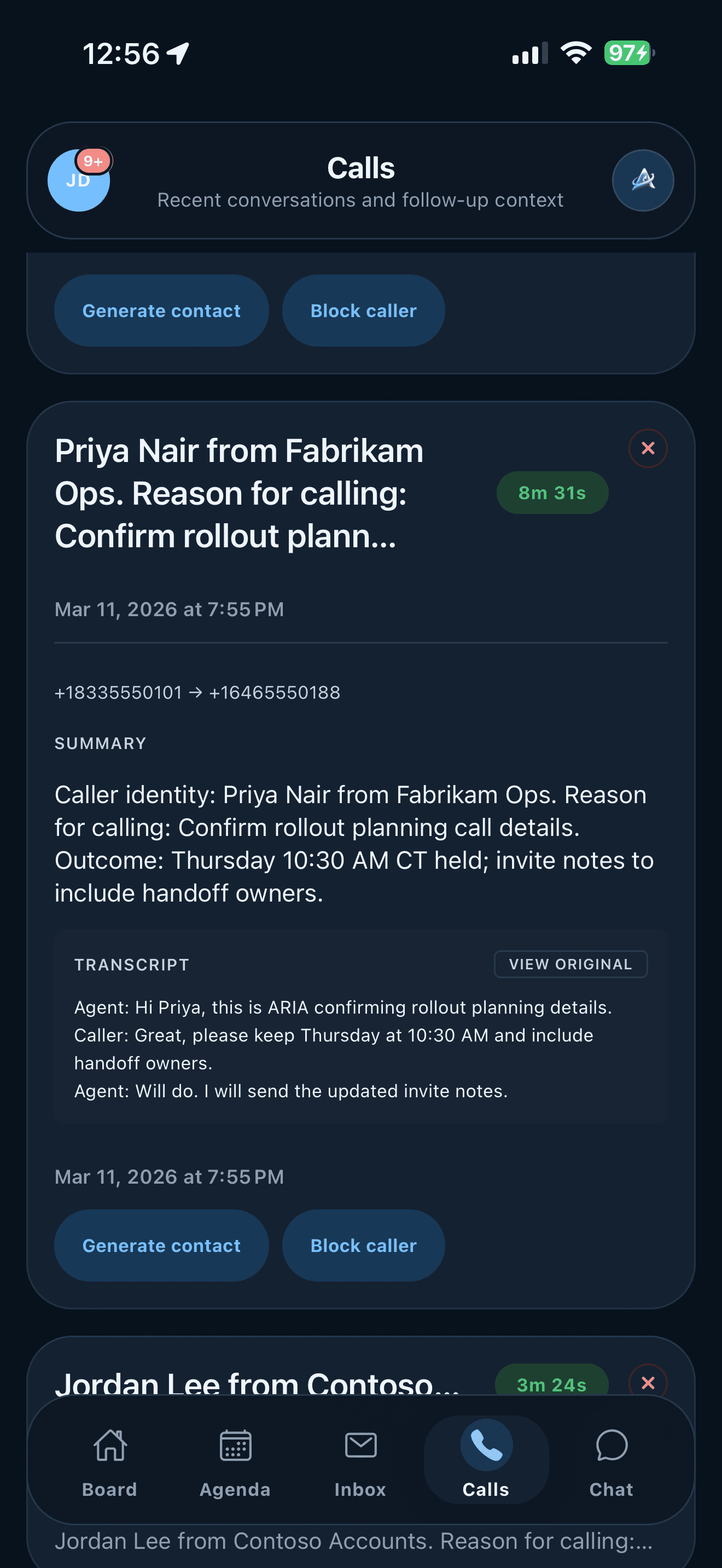
Real iPhone detail view
Use the detail screen to confirm the outcome, not just the transcript
Start with the summary and outcome. Open the transcript only when the wording matters, the summary feels incomplete, or the follow-up is high-stakes. That keeps call review fast while still leaving enough evidence for a second look.
Generate a contact when this person should become part of ARIA's longer-term memory.
Block the caller when the number should be stopped before ARIA answers again.
On web, the same information usually has more room for transcript reading. On mobile, it is optimized for a quick decision pass.
Agenda And Briefs
How ARIA handles scheduling and time-based work
When ARIA detects scheduling intent, the goal is not blind automation. The goal is to present clear options you can review so you can move faster without losing control.
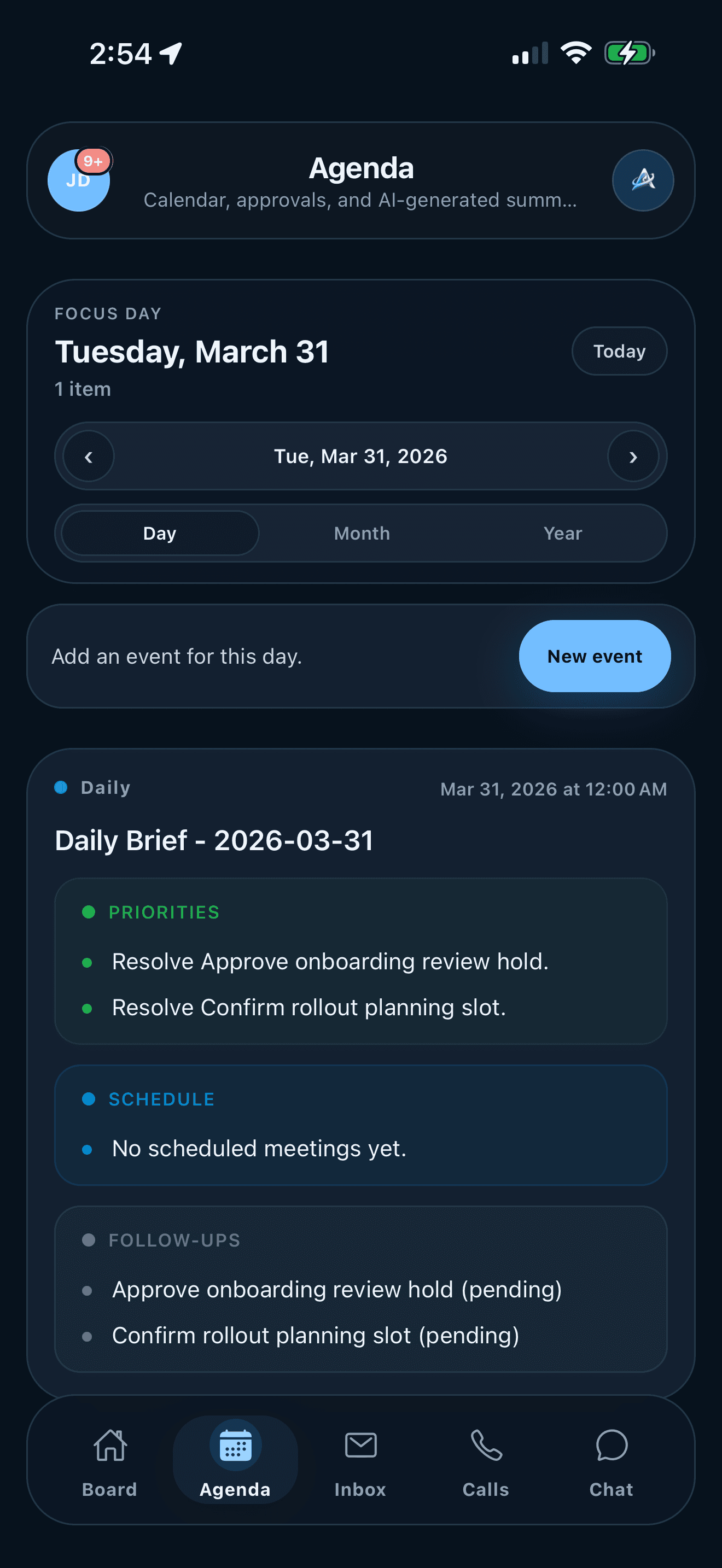
- Use Agenda to review the current day's brief, scheduling items, and other time-based work in one place.
- Treat scheduling suggestions as options to review, not automatic commitments. ARIA should help you move faster, not remove judgment.
- Working hours shape the openings ARIA suggests. If the assistant offers odd times, check Settings before changing the calendar itself.
- ARIA deduplicates matching calendar items across connected accounts, so shared holidays or mirrored events should appear once instead of repeating.
- Daily briefs help you execute today. Weekly digests help you spot patterns. Use them differently.
- If a day looks empty when it should not, check the linked calendar connection before troubleshooting anything else.
Chat And Contacts
Use direct assistance and relationship context together
These two screens are where ARIA starts to feel more helpful than mechanical. Chat helps you act. Contacts helps you remember.
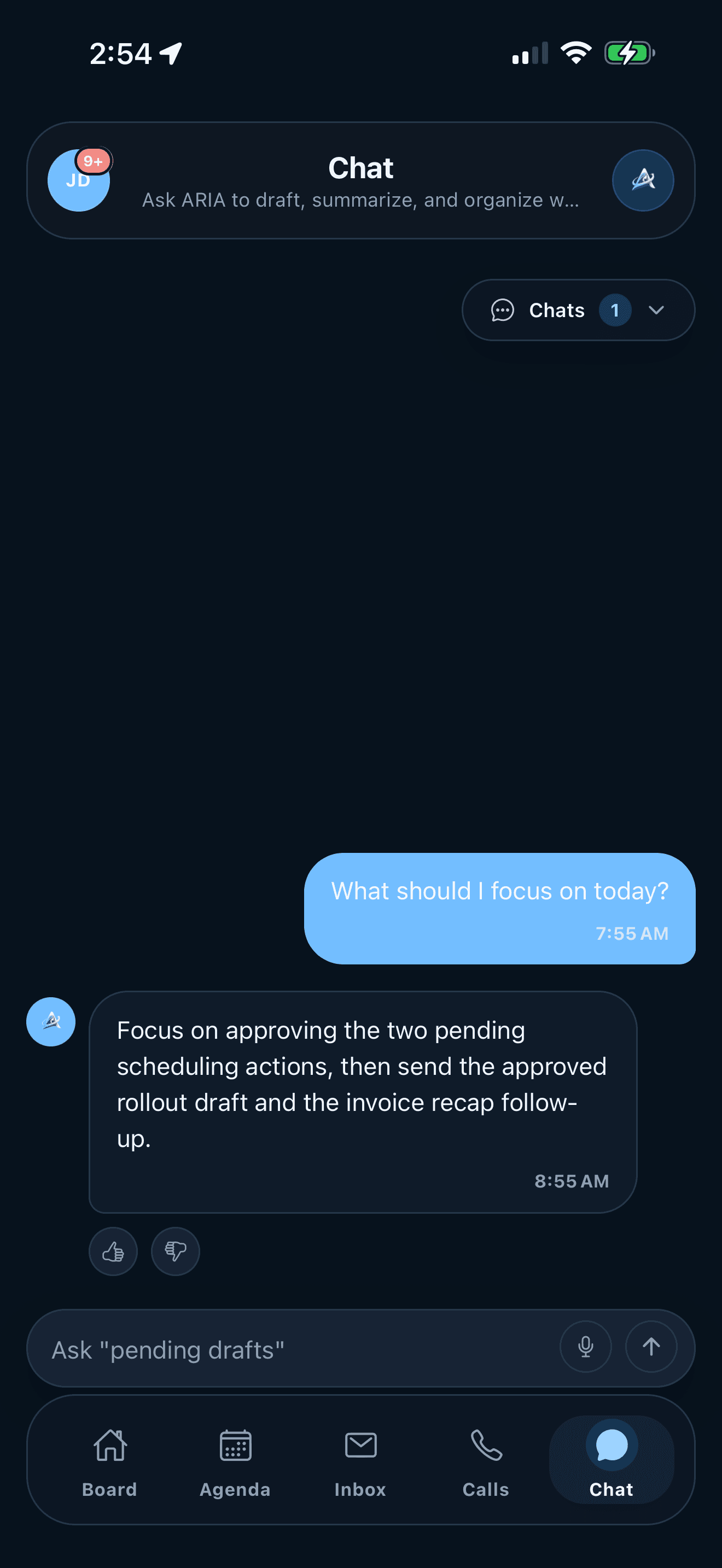
Chat is where you ask for help in plain language
Use Chat when you want ARIA to tell you what matters today, draft a reply, summarize a messy thread, or combine signals from multiple screens into one answer. Chat can also act like an in-app guide: ask where to do something, and ARIA can offer a card that opens the right screen.
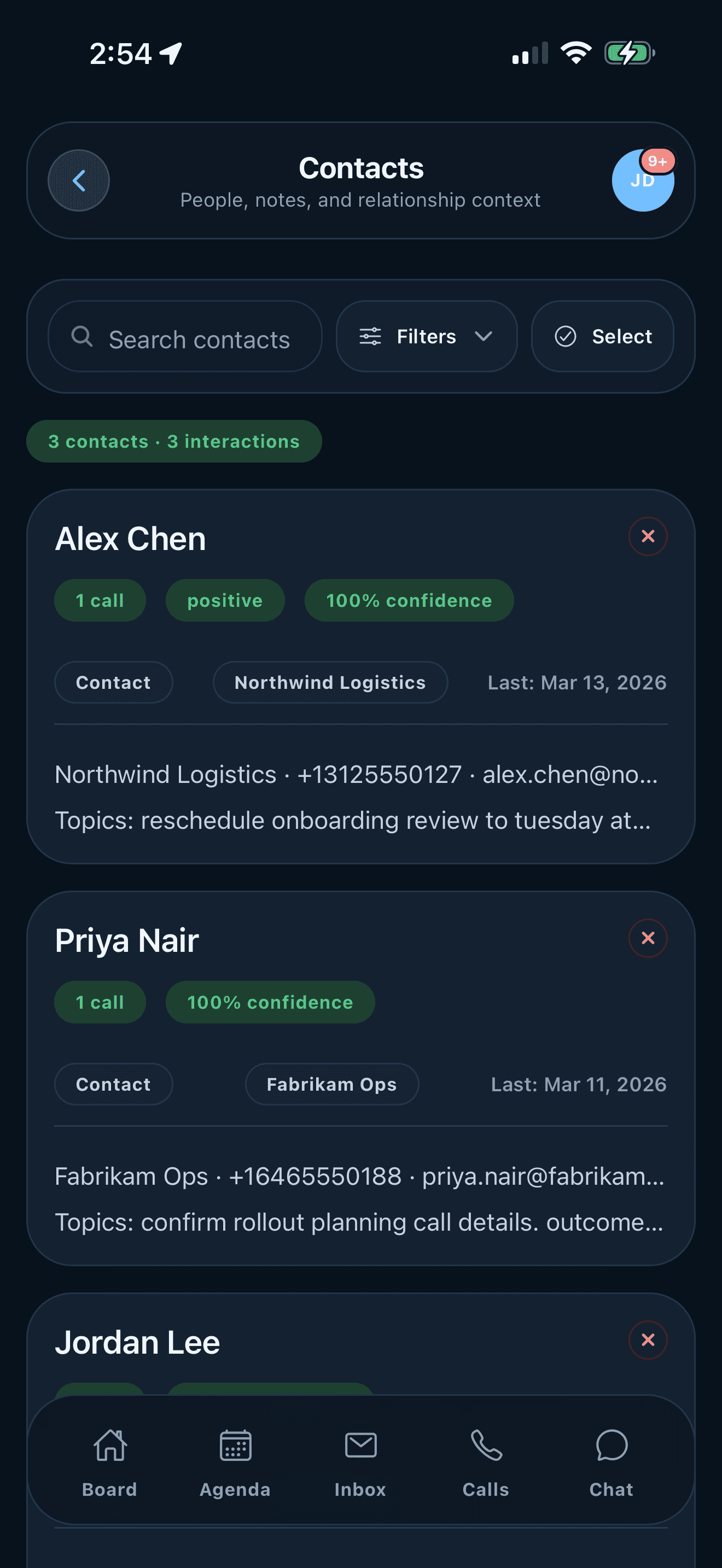
Contacts is where the assistant gets smarter over time
Contacts preserves person-level memory: who someone is, what company they belong to, when you last interacted, what topics keep recurring, and whether the person should be treated as an important caller. That context makes future calls, drafts, and follow-up suggestions more useful.
Use them together for the best results
A strong pattern is to open a contact to get oriented, then jump into Chat to draft the follow-up or ask what changed. That turns raw activity into a useful action much faster than reading everything manually.
Notifications, Setup, Billing
Where to go when you need control instead of speed
Most daily work happens in Board, Agenda, Inbox, Calls, and Chat. The screens below are the mobile support layer: the places you check when you need updates, orientation, account control, or plan clarity.
Notifications
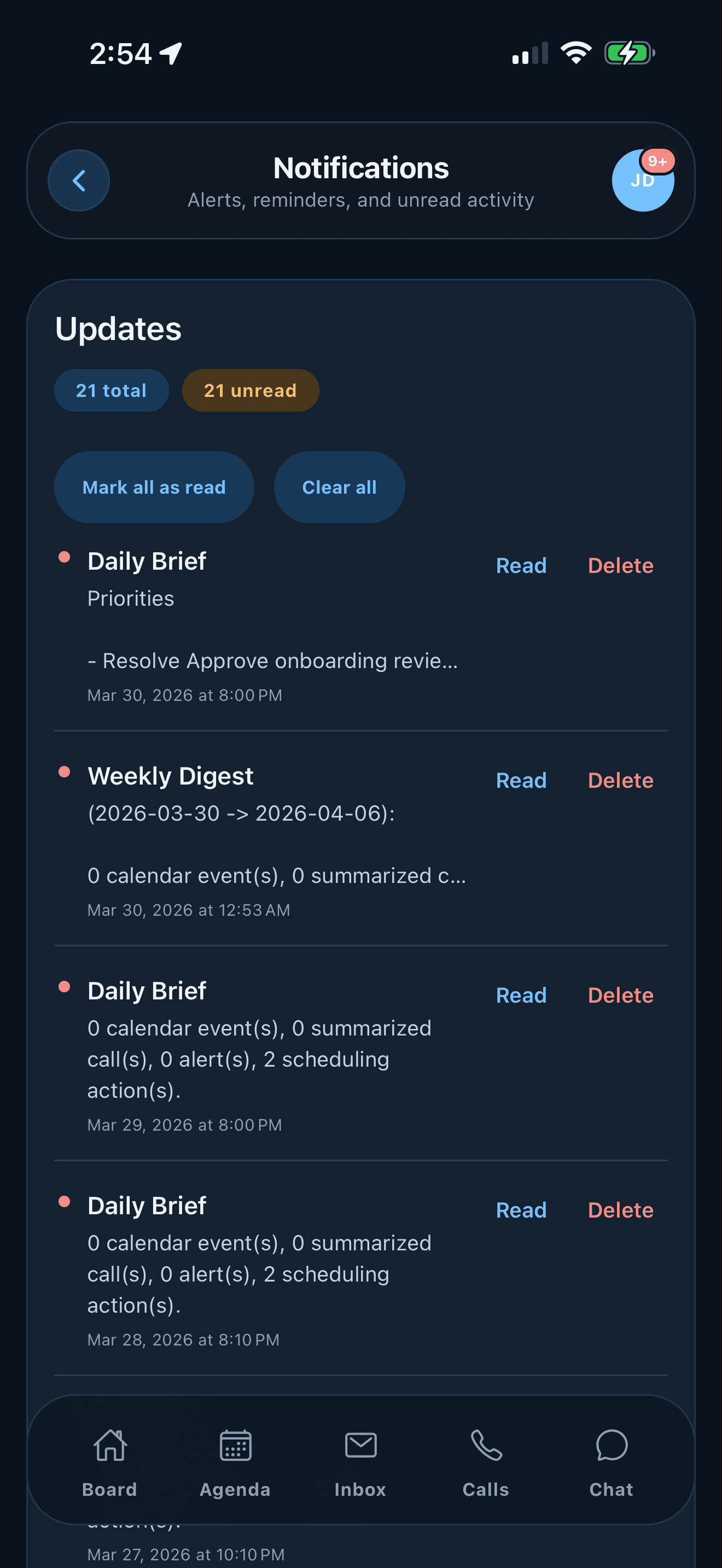
Use notifications to stay current on briefs, reminders, and unread activity. If ARIA feels quiet on mobile, permission state is one of the first things to verify.
About and replay guide
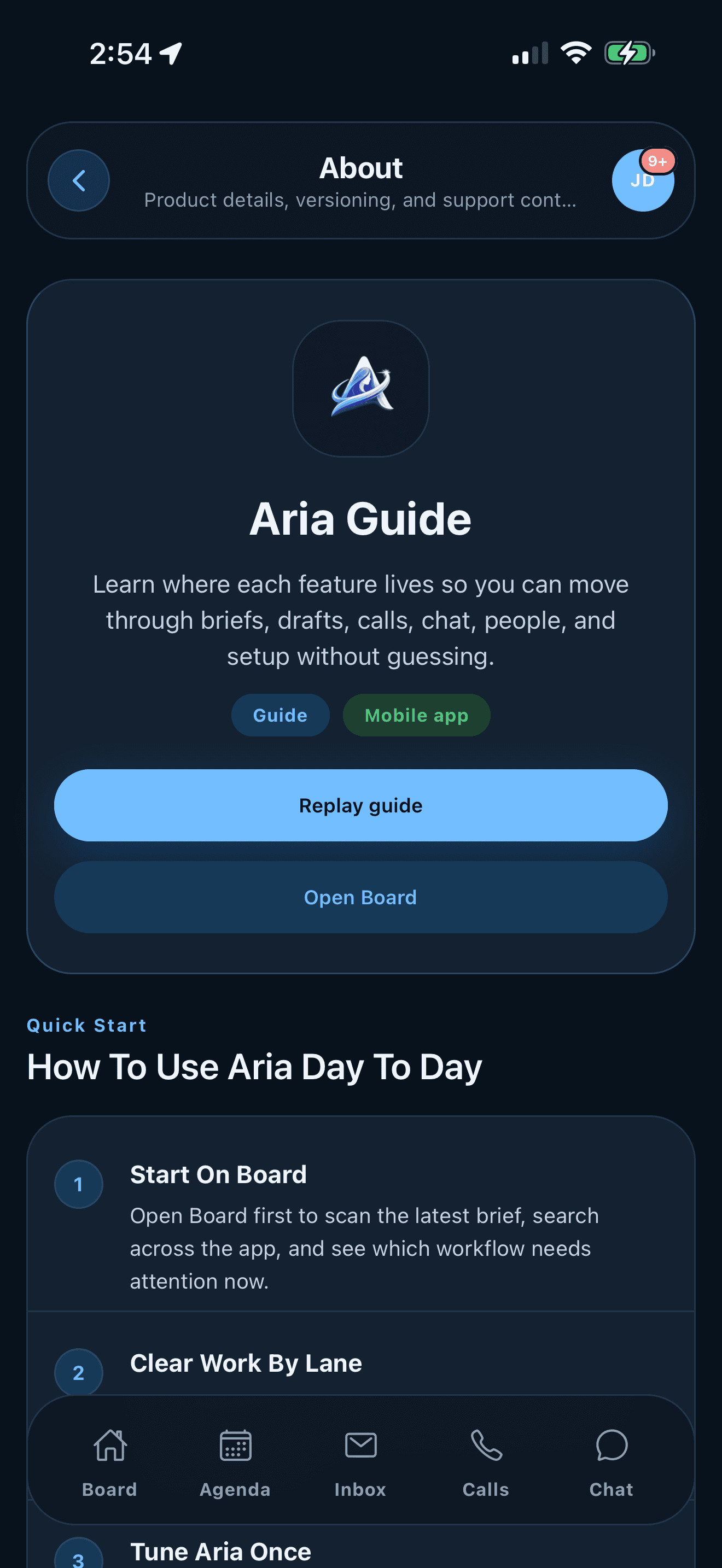
The mobile About screen is the short version of this page. Use it when you are onboarding someone new or when you simply forgot which tab to open next.
Connections and sync health
If ARIA feels stale, empty, or blind, check your linked inboxes, calendars, and watch rules first. Those settings may be easier to finish on web, but the resulting data shows up back on mobile.
Assistant behavior
Tone, summary style, AI data sharing, contact generation, and profile settings are the controls that make ARIA feel personal instead of generic. Set them carefully once, then revisit them when your workflow changes.
Working hours and important callers
Use working hours to teach ARIA when you are normally available. Use important caller interrupt settings when specific people should be able to reach you faster than normal call handling allows.
Phone setup
Phone setup covers the assistant number, greeting, voice, transfer number, blocked callers, recent-call context, and live call behavior. Review it before relying on ARIA to answer or bridge calls.
Billing
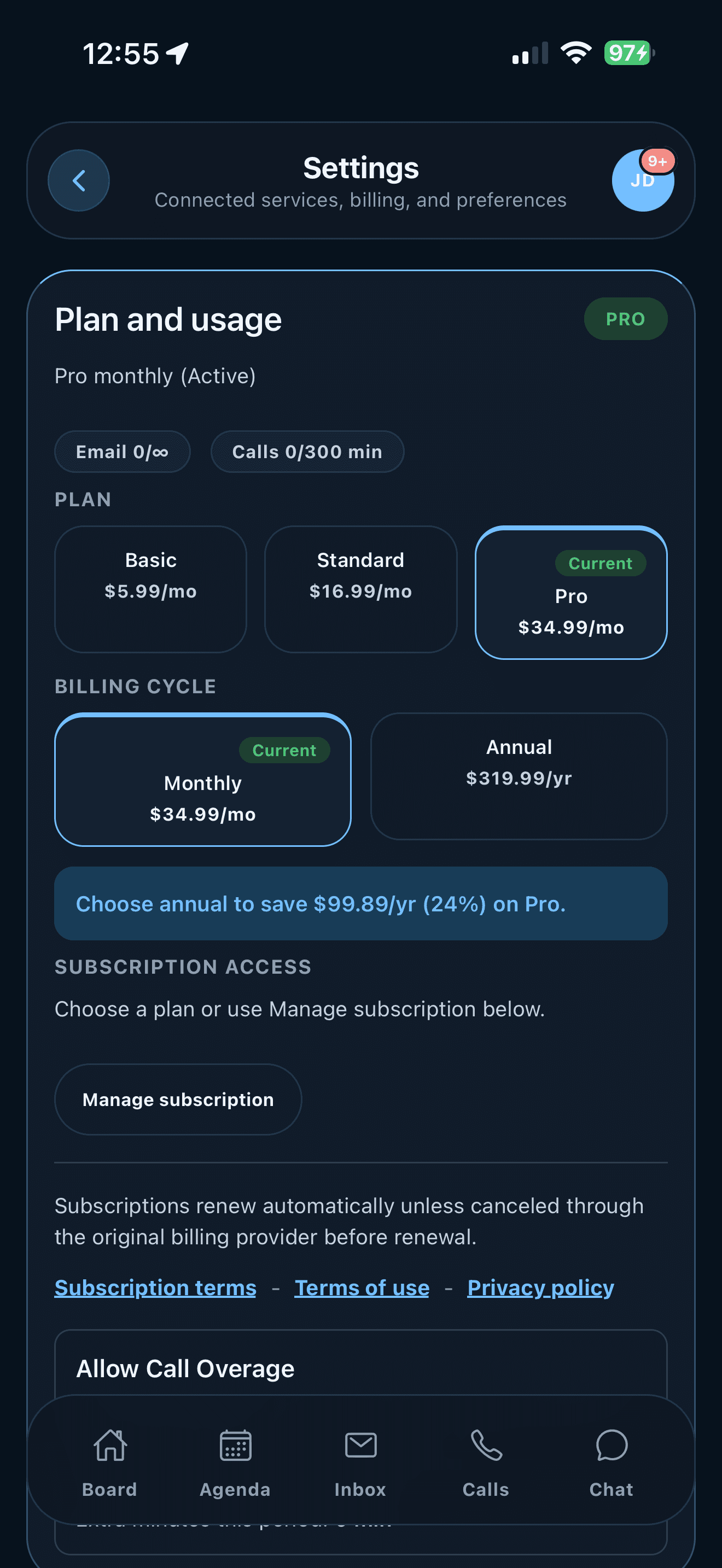
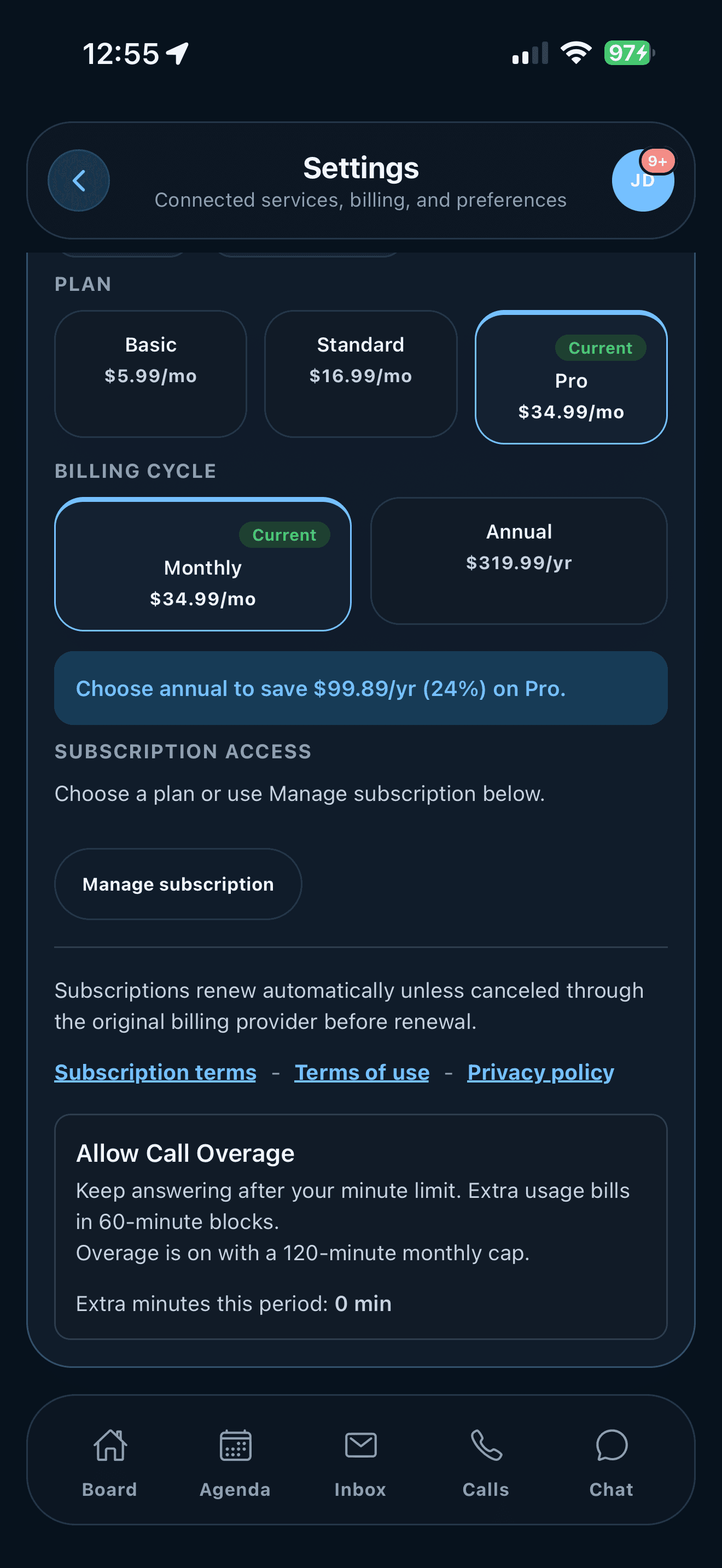
Use billing and plan status to confirm whether calling, call minutes, and overage controls should be available. The app shows your access even when the actual subscription is managed by Apple or on web.
Real iPhone setup views
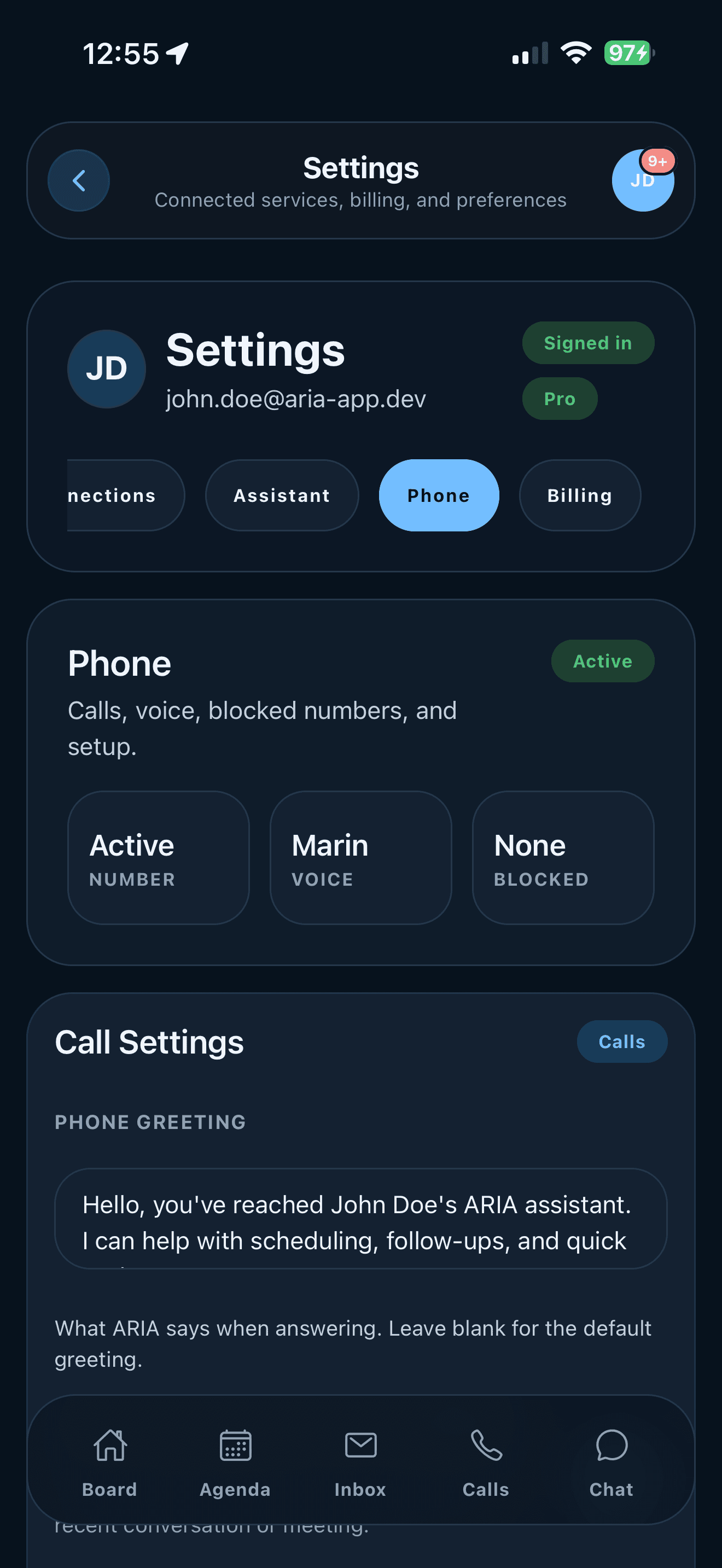
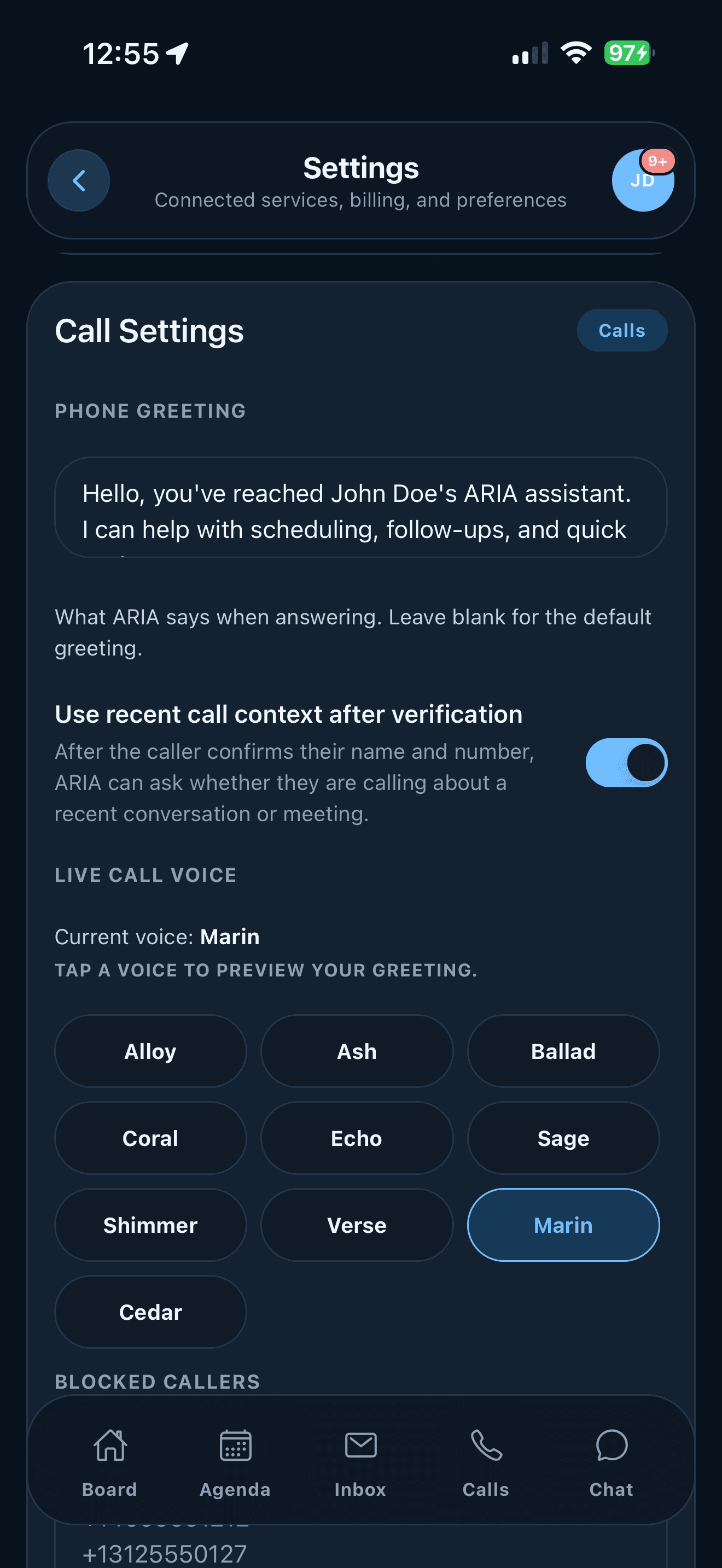
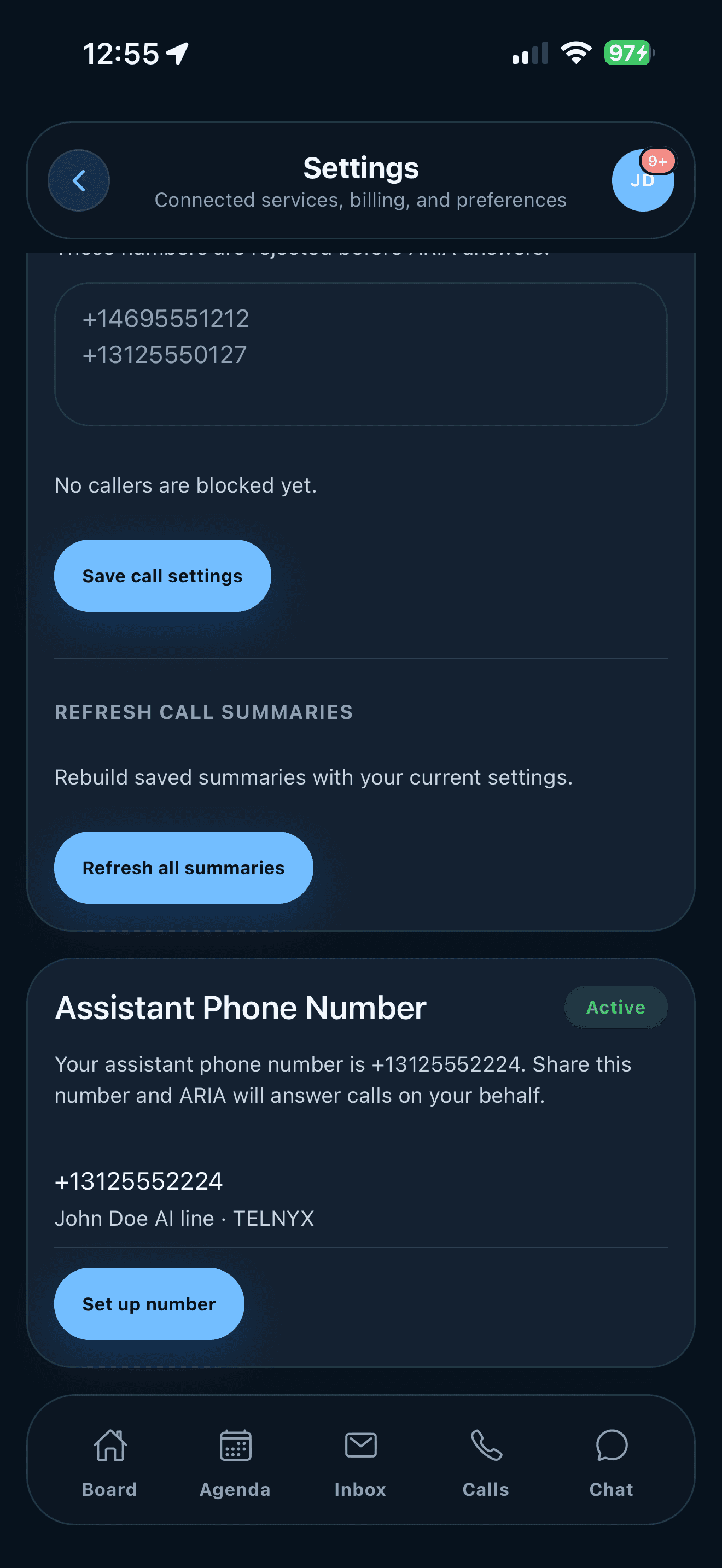
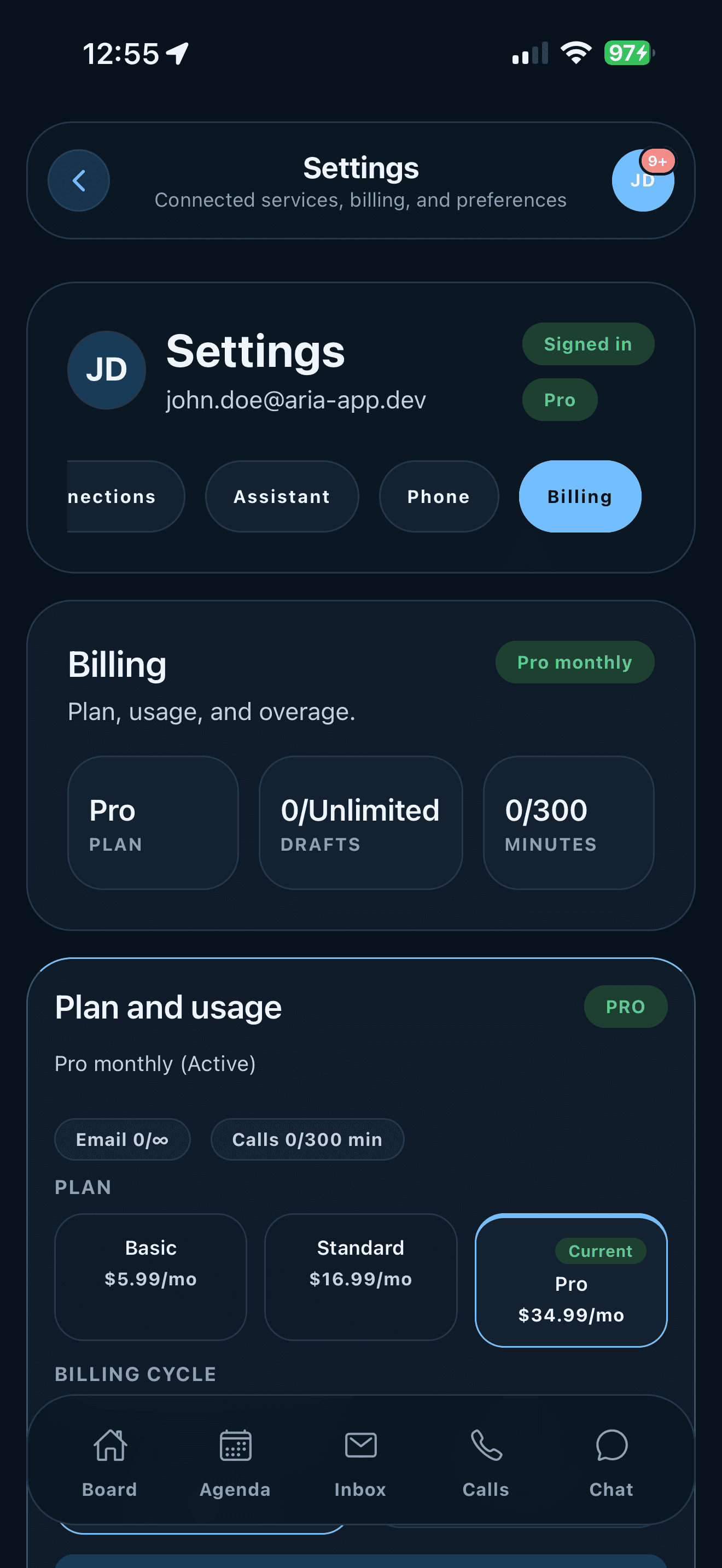
Settings in ARIA run longer than one screen, so this section uses real mobile captures of the most important slices instead of pretending everything fits into a single compact mockup. Use these as the mobile reference for connections, assistant behavior, working hours, phone setup, important callers, and billing.
Connections
Start here when ARIA feels disconnected, stale, or incomplete
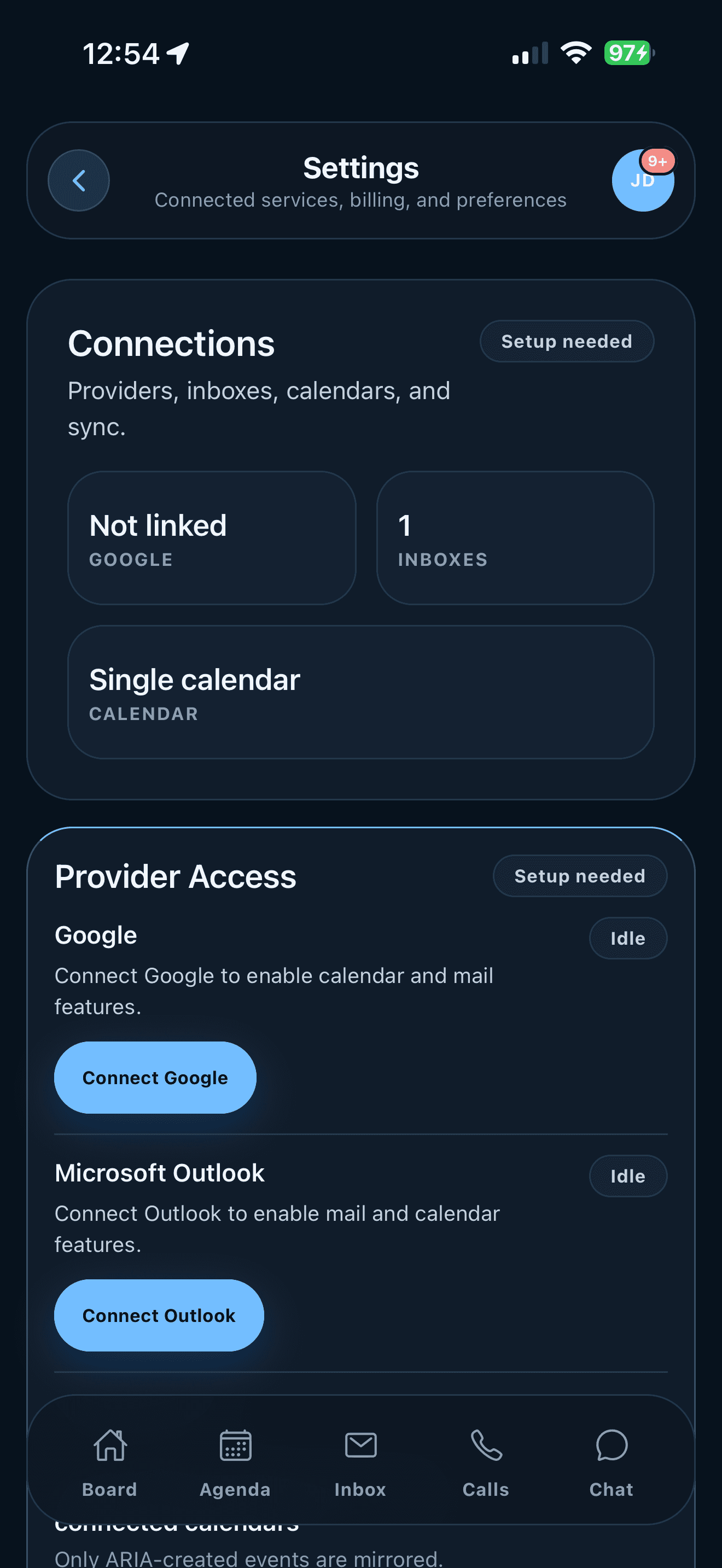
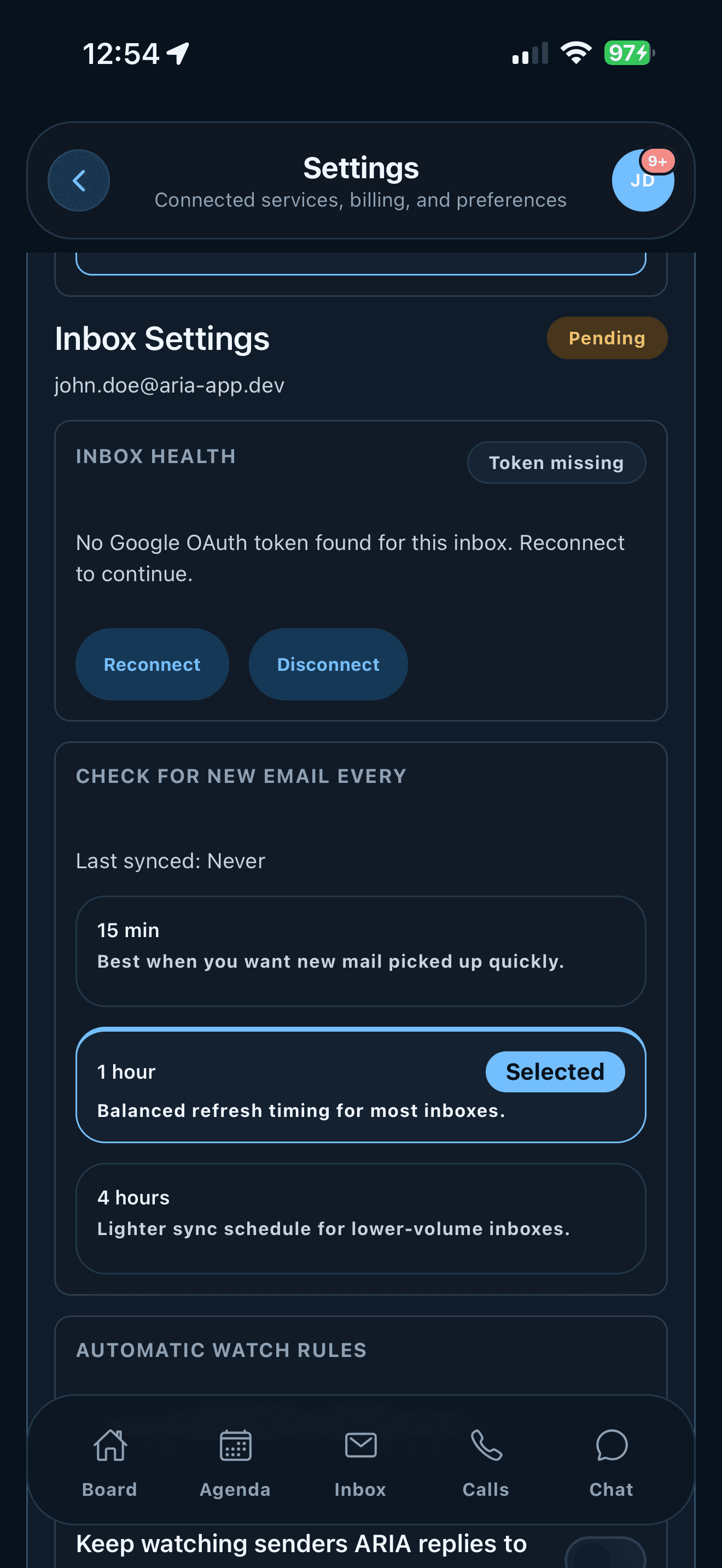
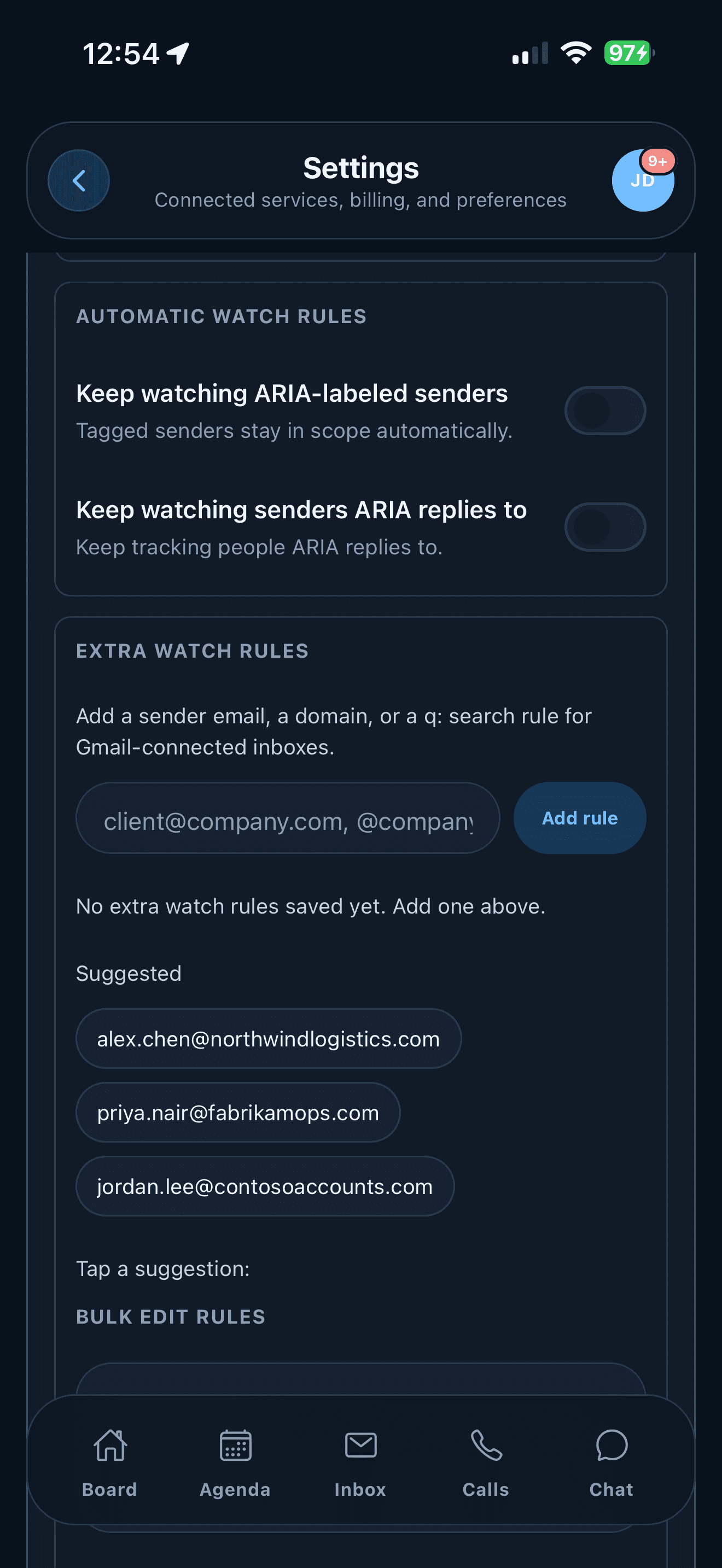
Connections is where you link accounts, confirm calendar sync, choose how often ARIA checks mail, reconnect expired access, and control watch rules. Manual refresh can pick up approved watch-rule senders and domains without widening the whole mailbox. If drafts stop appearing or Agenda misses context, this is the first mobile screen to inspect.
Platform note: web may still be the easiest place to finish some sign-in flows, but mobile shows connection health, mail timing, and watch-rule state very clearly once the accounts are linked.
Assistant
This is where you shape how ARIA thinks, summarizes, and sounds
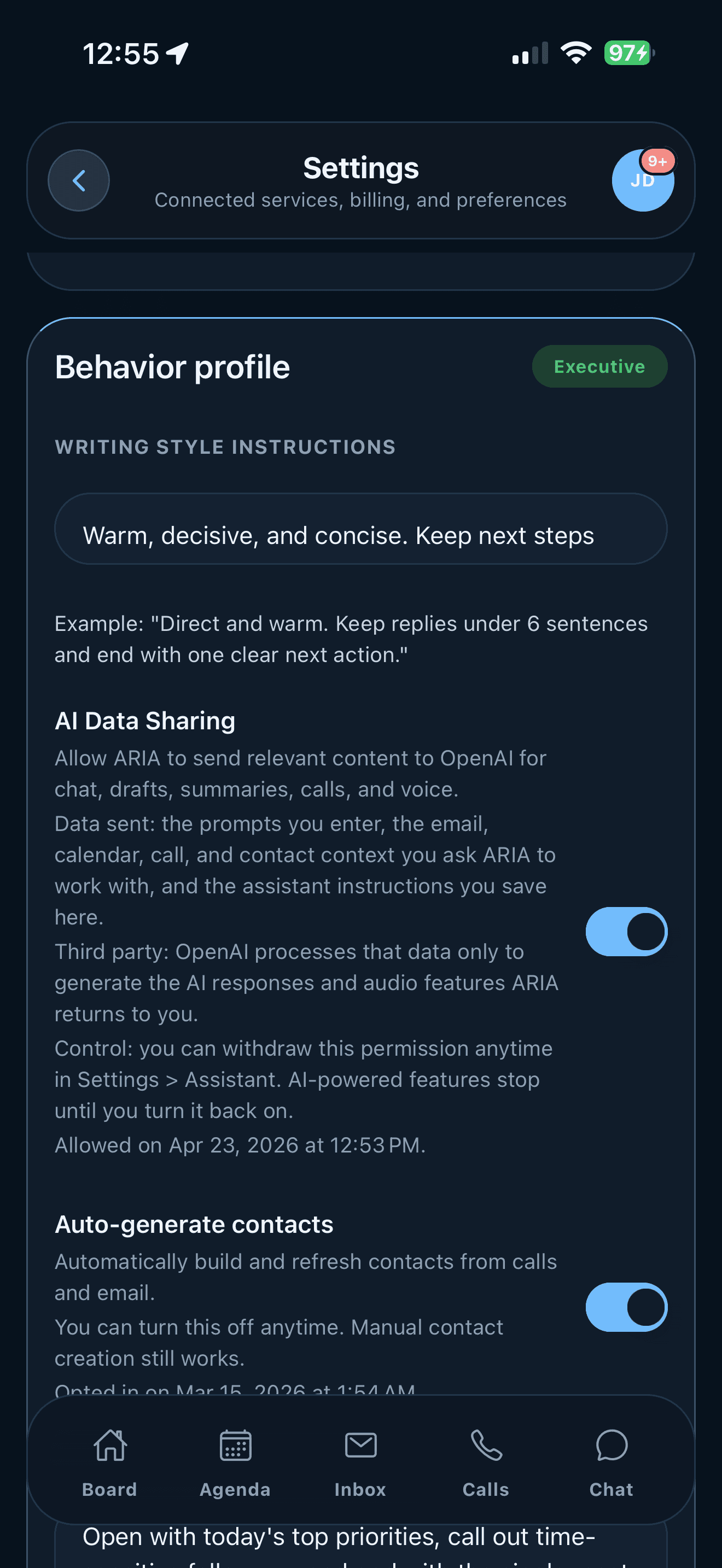
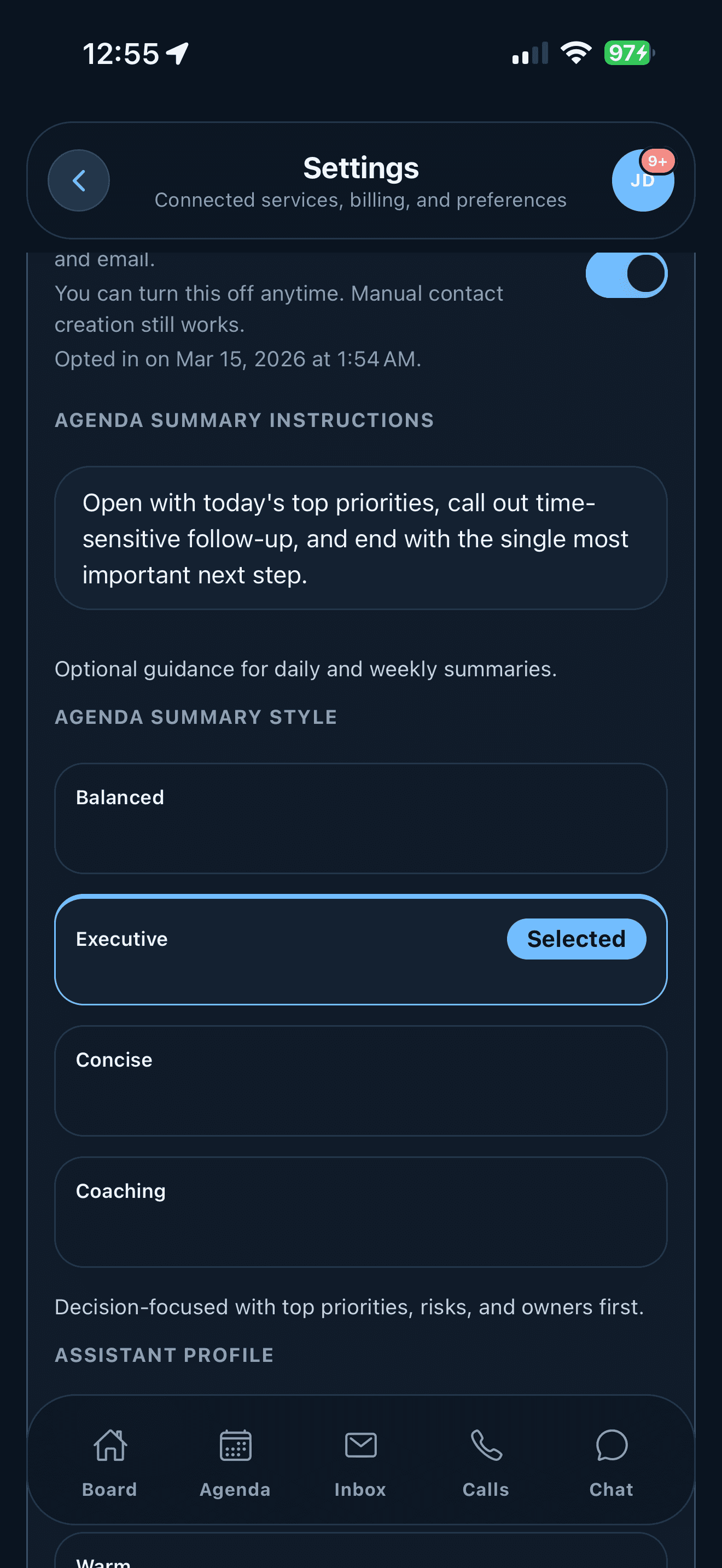
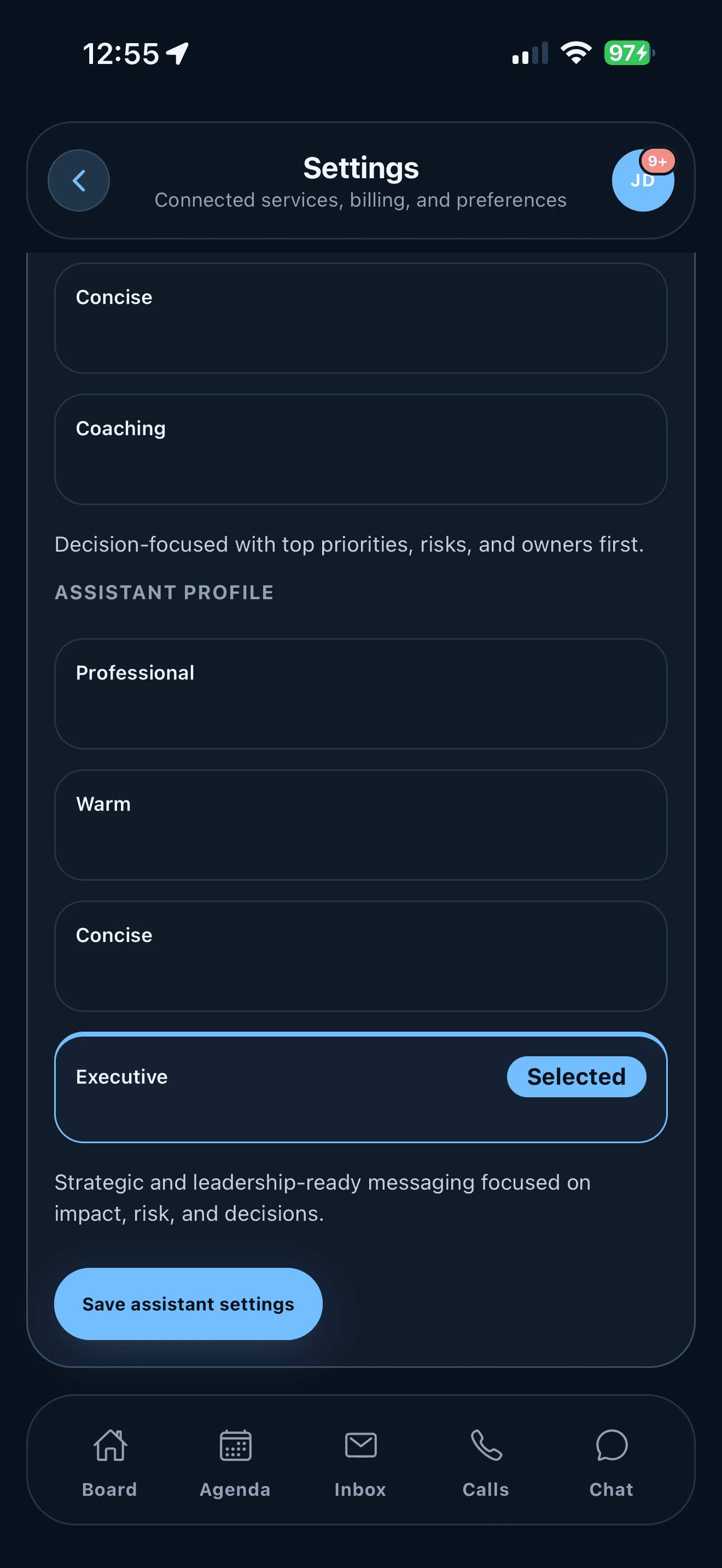
Assistant settings control AI data sharing, contact generation, summary style, working hours, important caller behavior, and the broader assistant profile. Set these once with care and revisit them when the user's role, availability, or tone changes.
Platform note: iPhone and Android keep this in mobile settings. Web may expose the same fields with more width, but the behavior should stay aligned.
Phone
Verify the number, greeting, voice, and blocked-caller behavior before relying on calls
Phone settings show whether the assistant number is active, what voice ARIA uses, how the greeting sounds, whether recent call context is considered after verification, and which callers are blocked before ARIA answers. If important caller interrupts are enabled, this is also where the transfer phone matters because ARIA needs a number to bridge accepted live calls to.
Platform note: plan or account status can determine whether calling is available, but the call behavior itself is easiest to verify from these mobile screens.
Billing
Use billing to explain feature access, usage, and renewal expectations
Billing tells you which plan is active, how much call capacity is included, whether the account is monthly or annual, where to manage the subscription, and whether call overage is enabled. On iPhone, supported overage preferences can be saved from the app even when subscription management itself belongs to the App Store.
Platform note: iPhone may defer actual subscription management to the App Store depending on purchase source, while web is often the easiest place to manage billing directly. ARIA should still show the final access state everywhere.
Platform Differences
What changes between web, iPhone, and Android
ARIA should not feel like three different products. Still, labels, navigation patterns, and subscription-management paths naturally shift by platform.
Primary navigation
Web
Sidebar navigation with separate destinations such as Home, Emails, Calls, Contacts, Agenda, Notifications, Settings, and About.
iPhone
Bottom tabs for Board, Agenda, Inbox, Calls, and Chat, with secondary screens such as Contacts, Notifications, and About one layer deeper.
Android
Core flow matches iOS. The navigation model stays mobile-first even though visual density and system styling can vary by device.
Main home screen
Web
Home.
iPhone
Board.
Android
Board.
Draft and approval screen
Web
Emails.
iPhone
Inbox.
Android
Inbox.
Calendar and brief screen
Web
Agenda.
iPhone
Agenda, with briefs also surfaced prominently from Board and notifications.
Android
Agenda, with the same brief-driven workflow and Android-specific notification behavior.
Relationship context
Web
Contacts appears as its own primary sidebar destination.
iPhone
Contacts exists as a dedicated screen, but it is not one of the five bottom tabs.
Android
Contacts exists as a dedicated screen and is typically reached through the same mobile flow as iOS.
Notifications
Web
Browser or in-app notification patterns plus a dedicated notifications view.
iPhone
Dedicated notifications screen plus native push behavior if permission is granted.
Android
Dedicated notifications screen plus Android device-specific notification controls.
Working hours and availability
Web
Settings exposes working-hour controls that shape availability checks, scheduling suggestions, and call handling.
iPhone
Mobile Settings uses compact day and time controls. Those hours affect calls, chat availability answers, and scheduling suggestions.
Android
Behavior matches iPhone, though the native time picker and notification surfaces may look different by device.
Important caller interrupts
Web
Settings and Contacts let you configure which important callers can interrupt normal call handling.
iPhone
Important caller alerts can arrive through urgent push or in-app actions, then bridge to the configured phone when accepted.
Android
The same account settings apply. The exact alert presentation depends on Android notification permissions and device policy.
Inbox scope and refresh
Web
Emails can refresh ARIA-labeled mail plus approved watch-rule senders, domains, or provider searches.
iPhone
Inbox pull-to-refresh uses the same scope and keeps existing data visible if the provider rate-limits a manual refresh.
Android
Matches the mobile Inbox behavior. Approved watch rules expand scope without widening the whole mailbox.
Guide and help
Web
About page plus the full website guide.
iPhone
About screen with replayable guide and quick-start steps inside the app.
Android
Android follows the same in-app guide pattern as iOS.
Billing management
Web
Usually easiest to manage directly on web, especially for Stripe-backed subscriptions.
iPhone
May defer to App Store subscription management depending on how the plan was purchased. Supported call-overage preferences can still save from the iOS app.
Android
Depends on purchase path, but the app should still reflect the account's final ARIA access state.
Troubleshooting
If something feels off, start here
Most issues become easier to solve when you know whether they are a connection problem, a settings problem, or a platform-specific problem.
The app looks empty or outdated
Check account identity and linked services first. Most empty-state issues come from the wrong account, an expired connection, or a sync problem rather than from the assistant itself.
A draft or summary seems wrong
Open the original source context before correcting it. Once you see the original email thread or call situation, the draft usually becomes easier to judge and fix quickly.
You cannot find a screen on mobile
Remember that only five tabs live in the bottom bar. Contacts, Notifications, and About are real screens, but they are secondary destinations instead of permanent tabs.
Calling or subscription access seems off
Review plan status, phone setup, and purchase source before assuming something is broken. On iPhone, billing may be managed by Apple even though ARIA shows the result inside the app.
Important callers are not interrupting you
Check four things in order: the contact is marked important, interrupt behavior is enabled, your transfer phone is set, and your working-hours or outside-hours setting allows the interruption.
Availability or scheduling times look wrong
Review working hours, calendar connection health, and out-of-office events first. ARIA uses those signals before it suggests openings or answers availability questions during a call.
You are not sure where to restart
Go back to Board first. If that still feels confusing, open About and replay the quick guide, then return to Board, Agenda, Inbox, Calls, and Chat in that order.
Notifications are quiet
Check phone notification permission, Focus mode, and the notifications screen inside ARIA. If the app has the right data but you never hear from it, this is usually a settings issue, not a content issue.
Recommended habit
If you are onboarding a new team member, have them read this page once, then ask them to open ARIA and move through Board, Agenda, Inbox, Calls, and Chat in that order. Finish with About so they know where to go when they need the shorter refresher later.